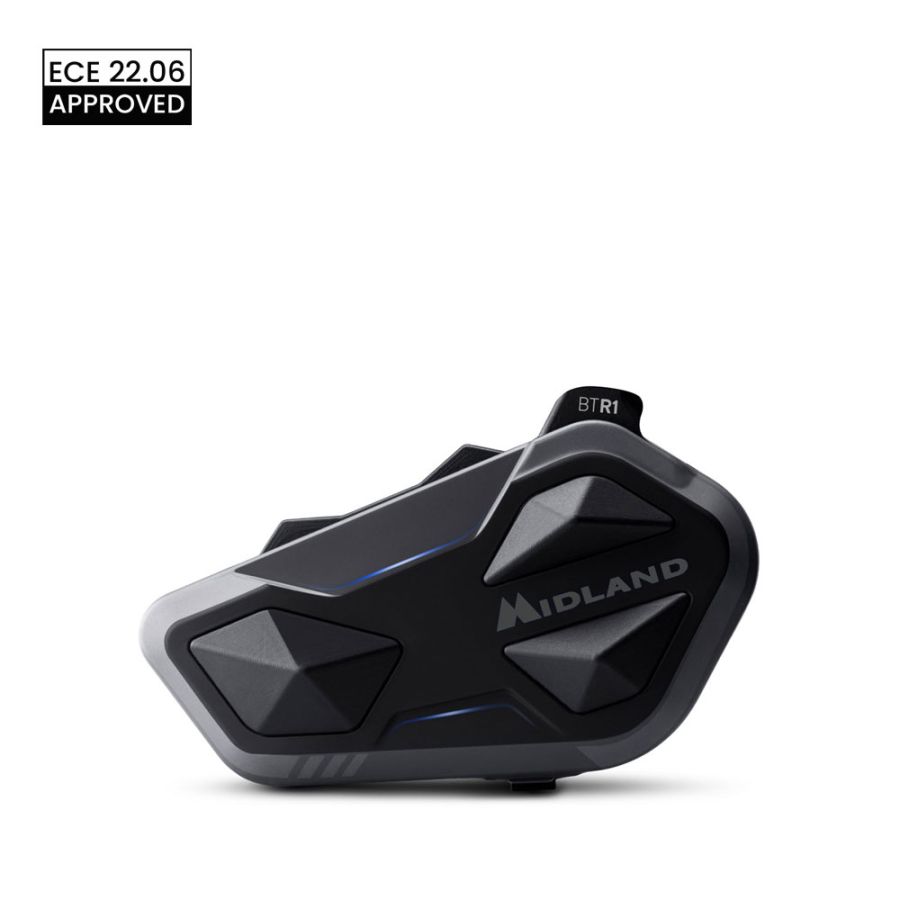
Support for BTR1 INTERCOM


Here you will find the video and the software to upgrade your device
Guide on how to mount the device on the helmet
2.2 MB
Here you will find the video and the software to upgrade your device
Download the software to upgrade your device for Windows computers
82.0 MB
Download the software to upgrade your device for MacOS computers
681.0 kB
Here you will find the app to configure and use your device
Here you will find the answers to the most frequently asked questions about your device
Connecting your BTR1 is easy! Follow these steps:
- Activate pairing mode:
- Turn on your intercom by pressing and holding the Control button (large button on the left) and the Down button for 3 seconds.
- Press and hold the Volume + button for 5 seconds.
- The LEDs will flash red and blue.
- Connect your device:
- On your phone, motorcycle display, or GPS device, open the Bluetooth settings and search for "BTR1".
- Tap to connect and enter the code 0000 if requested.
- The blue LED will flash to confirm the connection.
- Done! Your intercom is ready to use.
Helpful tips:
- If your motorcycle has a display, first connect your phone to the display, then connect the intercom to the display. WARNING: in this configuration, the phone and the intercom must not be directly connected to each other.
- To connect a GPS navigator (mono audio), repeat the same steps using the Volume - button. In this case, you can even broadcast the navigation instructions received from your GPS through the intercom so that everyone can hear them. To do this, simply enable the "Mono Audio Relay" function in the Midland Connect App.
With your BTR1 you can connect:
- Up to 3 intercoms: communicate with other riders using Midland, OBI, or other brands of intercoms.
- Up to 2 Bluetooth devices: a smartphone, your motorcycle TFT display, or a GPS navigator.
Important:
- If you connect a new Bluetooth device, it will replace the previously connected device. Be careful which devices you pair.
- If you use a GPS navigator, it is recommended to connect it as the second Bluetooth device so you can continue using your phone for calls and music.
- To connect a second Bluetooth device, such as a GPS navigator, use the Volume - button. The connection will be in mono audio.
The great thing about the BTR1 is that it can connect to intercoms from any brand! Some models may require an extra step, but nothing complicated.
Midland, CARDO, and some SENA intercoms
These are the easiest to connect:
- Choose a button:
- Turn on your intercom by pressing and holding the Control button (large button on the left) and the Down button for 3 seconds.
- Choose one of the three buttons on your BTR1 where you want to connect the other intercom.
- Press and hold that button for 7 seconds until the LEDs flash red and blue.
- Prepare the other intercom:
- Activate Intercom pairing mode on the other device (refer to its user manual).
- Confirmation:
- The BTR1 will confirm the connection with a blue light.
Intercoms from other brands
No problem, follow these steps:
- Choose a button:
- Turn on your intercom by pressing and holding the Control button (large button on the left) and the Down button for 3 seconds.
- Choose one of the three buttons on your BTR1 where you want to connect the other intercom.
- Press and hold that button for 7 seconds until the LEDs flash red and blue.
- Prepare the other intercom:
- Activate Phone pairing mode on the other intercom (refer to its user manual).
- Confirmation:
- The BTR1 will confirm the connection with a blue light.
Important:
- If you connect a new intercom to the same button, the previous pairing will be deleted.
Intercom communication allows you to talk to one paired intercom at a time or to multiple intercoms simultaneously (Conference).
One-to-one Intercom communication
Proceed as follows:
- Double-click the button associated with the intercom you want to talk to. You will hear the "Intercom Open" prompt.
- Talk.
- Close the connection by double-clicking the same button again.
In practice, opening and closing an intercom connection simply requires a double-click on the button associated with the desired intercom.
With the intercom paired to the Control button (large button on the left), you can also open the intercom connection using your voice (VOX function).
Conference communication
With an intercom call already open with one person, you can open a second intercom connection with another person without closing the first one:
- Double-click the button associated with the first person's intercom. You will hear the "Intercom Open" prompt.
- Double-click the button associated with the second person's intercom. You will hear the "Intercom Open" prompt.
- Talk.
- Close one or both connections by double-clicking the corresponding button again.
The people connected to you can in turn open additional intercom connections, creating a larger group. Although the number of connected riders can become quite high, this configuration is recommended for 4 to 6 riders.
Each intercom can have a maximum of two active communications. When Conference mode is active, music cannot be played, but the phone remains connected so that calls can still be answered.
Conference communication works in a chain. For example, if there are 4 intercoms, Intercom 1 is connected to Intercom 2, which is connected to Intercom 3, which in turn is connected to Intercom 4. For best performance, riders should try to maintain this order on the road as well.
Keeping your intercom updated is important to ensure you always have the latest features and improvements.
1. Download the update software:
- Go to the "UPDATE" section at the top of this page and follow all the instructions.
2. Connect the intercom to your computer:
- Use the USB charging cable to connect your BTR1 to your computer.
- Open the BTUpdater software.
- BTUpdater will guide you step by step through the update process. Follow the on-screen instructions carefully.
Helpful tips:
- Make sure your computer is connected to the Internet during the update.
- Do not disconnect the intercom from the computer while the update is in progress.
The VOX function allows you to use your voice to answer phone calls or open an intercom connection with the intercom paired to the Control button (large button on the left), without pressing any button.
Note: If VOX is used to activate an intercom connection, it will automatically close after 60 seconds of silence.
How to enable or disable VOX
- VOX is enabled by default.
- To disable it, press and hold the Control button and the Volume + button for 3 seconds. You will hear a voice message confirming the change (for example, "VOX Off" if it was previously enabled).
- Repeat the same procedure to enable it again.
How to adjust VOX sensitivity
Sometimes VOX may activate too often (you frequently hear the "VOX" voice prompt) or not activate at all. In these cases, you can adjust its sensitivity through the Midland Connect App.
In simple terms:
- VOX is like a voice switch. When you speak, it activates; when you stop speaking, it deactivates.
- If VOX causes problems, you can adjust it using the app.
Note:
- The VOX function is not active during a phone call or when an intercom connection is already open.
1. Download the app
Search for "Midland Connect" on the App Store (iPhone) or Google Play Store (Android) and download it.
If you have an Android phone, follow all the steps below (the intercom must be paired to the phone to use the app).
If you have an iPhone, you can skip directly to Step 4 (pairing is not required to use the app, although you may still pair it if you wish).
2. Enable Bluetooth
- Make sure Bluetooth is enabled on your smartphone.
3. Turn on the intercom and pair it with your phone
- Turn on your intercom by pressing and holding the Control button and the Down button for 3 seconds.
- Press and hold the Volume + button for 5 seconds.
- The LEDs will flash red and blue.
- Open the list of Bluetooth devices on your phone and select BTR1.
- Follow the on-screen instructions to complete the pairing process.
In some cases Bluetooth pairing may be required. If prompted, enter PIN code 0000.
4. Open the app and connect the intercom
- Open the Midland Connect App.
- The app should automatically detect your BTR1 and ask you to accept the connection.
5. Configure the intercom
- Once connected, you can use the app to customize your BTR1 settings, including VOX sensitivity, volume management, and more.
Helpful tips:
- Make sure your BTR1 is running the latest firmware version. You can check and update it using BTUpdater on your computer.
- If you have trouble connecting the app to the intercom, try restarting both the intercom and the smartphone.
If the audio seems low or unbalanced, the speakers inside your helmet may not be positioned correctly.
- Check the speaker position: remove the helmet and make sure the speakers are properly aligned with your ears.
- Test the speakers: remove them from the helmet and place them directly over your ears. Do you notice a difference? If the sound improves, the issue is related to speaker placement.
Make sure the speakers are correctly positioned to achieve the best possible audio quality.
- Download BTUpdater and update the device. All instructions can be found in FAQ section 5.
- During the update procedure, simply select the desired language.
The BTR1 features a simplified interface and no longer uses separate operating modes. Thanks to this new interface, all intercom functions can be accessed using the following general controls:
- Phone/Music: Single click
- Intercom: Double click
To activate the voice assistant, a phone must be paired and no audio source must be active.
- Press the Up button once. You will hear the voice call announcement.
If you have a second phone paired using the Volume - button, you can activate its voice assistant by following the same procedure using the Down button.
The BTR1 offers several options for managing calls, ensuring flexibility and safety while riding.
Answering and ending a call
- You can answer an incoming call by pressing any button on the intercom once.
- Likewise, to end an active call, press any button once.
Rejecting a call
- To reject an incoming call, press and hold any button on the intercom for 3 seconds.
Voice Answer (VOX)
- If the VOX function is enabled, you can answer an incoming call simply by saying a word aloud.
- This feature is particularly useful to keep your hands on the handlebars and your attention on the road.
The BTR1 allows you to listen to your favorite music easily and intuitively.
- Launch your music application.
- Open your preferred music app (e.g., Spotify, Apple Music, YouTube Music) on your smartphone.
Play/Pause
- Press the Control button (large button on the left side) once to start or pause music playback.
Track control
- To skip to the next track, press the Up button once while music is playing.
- To return to the previous track, press the Down button once while music is playing.
Yes. The BTR1 includes the Parallel Audio feature, which allows you to listen to music or GPS navigation instructions while communicating through the intercom.
How it works
- Parallel Audio is always active on the BTR1.
- It allows intercom audio and other audio sources to be played simultaneously.
- This means you can listen to music or GPS directions while talking to your passenger or other riders through the intercom.
Software updates
- If you experience issues with this feature, make sure your BTR1 is updated to the latest firmware version available online. Updates often include improvements and bug fixes.
Device compatibility notes
Navigation Apps
- Navigation app instructions can be heard in the background if the phone is paired using the Volume + button (primary pairing).
Garmin ZUMO XT/XT2
- Garmin ZUMO XT/XT2 directions can be heard in the background if paired using the Volume - button (secondary pairing).
- Make sure the Background Audio function is enabled on the intercom (it should be enabled by default).
TomTom Rider 550
- The TomTom Rider 550 must be paired using the Volume + button (primary pairing) and configured in Stereo Audio (A2DP) mode.
The Music Share feature allows you to share the music you are listening to with your passenger, making your ride even more enjoyable.
How to activate Music Share
- Select your preferred music app on your phone.
- Open an intercom connection with your passenger.
- Press and hold the Down button for 3 seconds.
- You will hear a voice prompt confirming that Music Share has been activated.
Limitation
- While music sharing is active, it is not possible to talk with your passenger.
With the BTR1, you can listen to more than 30,000 radio stations worldwide through the Web Radio feature available in the Midland Connect App.
To learn how to download the app, refer to the information provided earlier on this page.
The communication range specified for your Midland intercom is measured under optimal conditions. Actual performance may vary depending on environmental and installation factors.
Factors affecting range
Obstacles
- Buildings, mountains, trees, large vehicles (such as trucks), and power lines can block or weaken the Bluetooth signal.
Mounting position
- The position of the intercom on the helmet is crucial. Incorrect installation can significantly reduce communication range.
Tips to optimize range
Antenna positioning
- The BTR1 features a directional internal antenna.
- For maximum efficiency, the antenna should be positioned parallel to the riding direction.
- Mount the intercom on the outer edge of the helmet in a symmetrical position, avoiding placement too far forward or too far back.
Environmental conditions
- Keep in mind that range varies depending on the surrounding environment.
- Urban areas with many obstacles will provide shorter range than open spaces.
Absolutely!
The BTR1 is fully waterproof and can be used in all weather conditions, so you do not need to worry about riding in the rain.
Additional information
- Although the BTR1 is waterproof, prolonged immersion in water should be avoided.
- Always check that the seals are in good condition and that all covers are properly closed before riding in adverse weather conditions.
The BTR1 is designed to provide long-lasting performance, allowing you to enjoy your rides without interruption.
Charging time
- A full charge takes approximately 3 hours.
Battery life
- The BTR1 offers more than 23 hours of battery life, making it one of the longest-lasting devices in its category.
This extended battery life allows you to undertake long journeys without frequently needing to recharge the device.
First, make sure that you have installed the latest firmware update. Review these FAQs and the Quick Guide to check whether a solution is already available.
If the issue persists, please contact our support team.
You can send an email to:
We will respond as soon as possible and do our best to help resolve the issue.
Here you will find the manuals and software to configure and use your device
Here you will find the instructions for correctly disposing of the packaging of your device
- Packaging
- PAP 21: paper
- Inner boxes/dividers
- PAP 21: paper
- Internal envelopes
- LDPE 4: plastic
- Cable Tie
- Mixed: unsorted
- Adhesive residue
- Mixed: unsorted
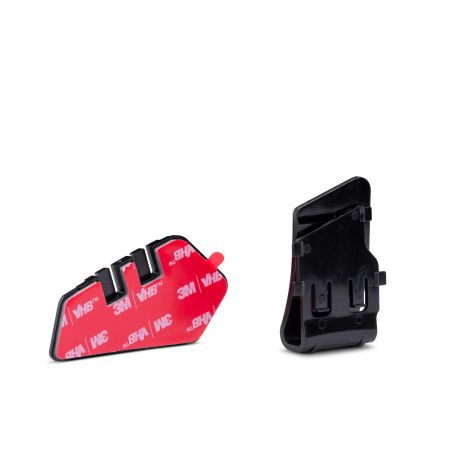
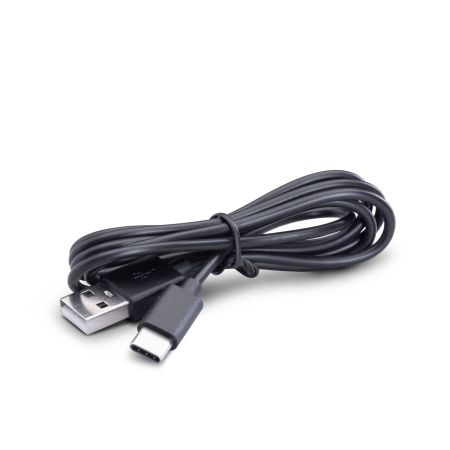
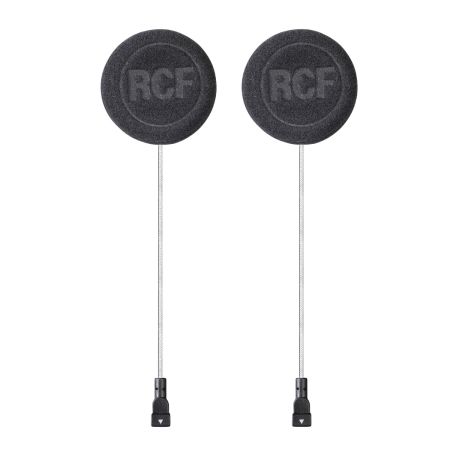
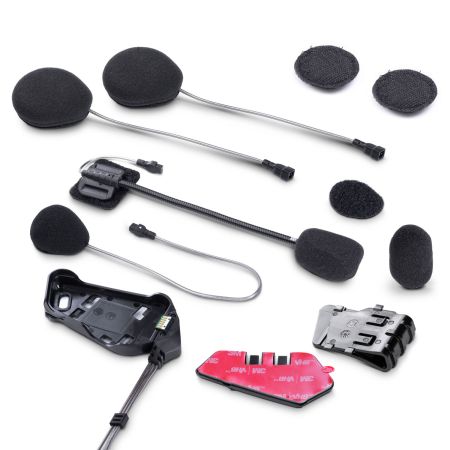
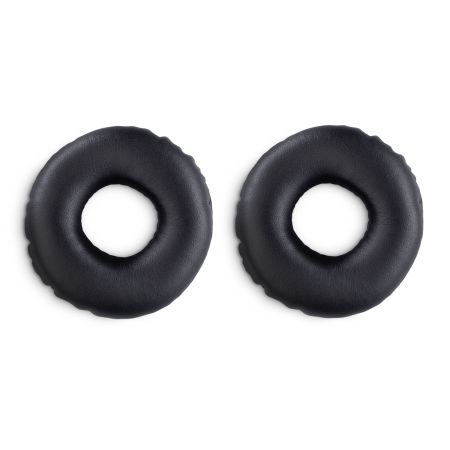
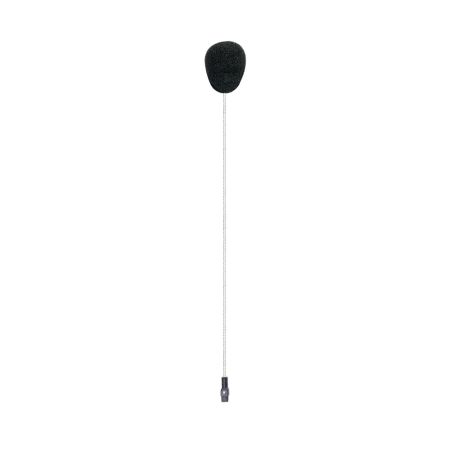
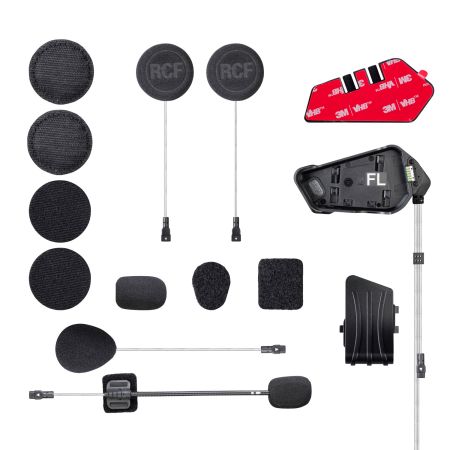
Here you will find the accessories and spare parts for your device