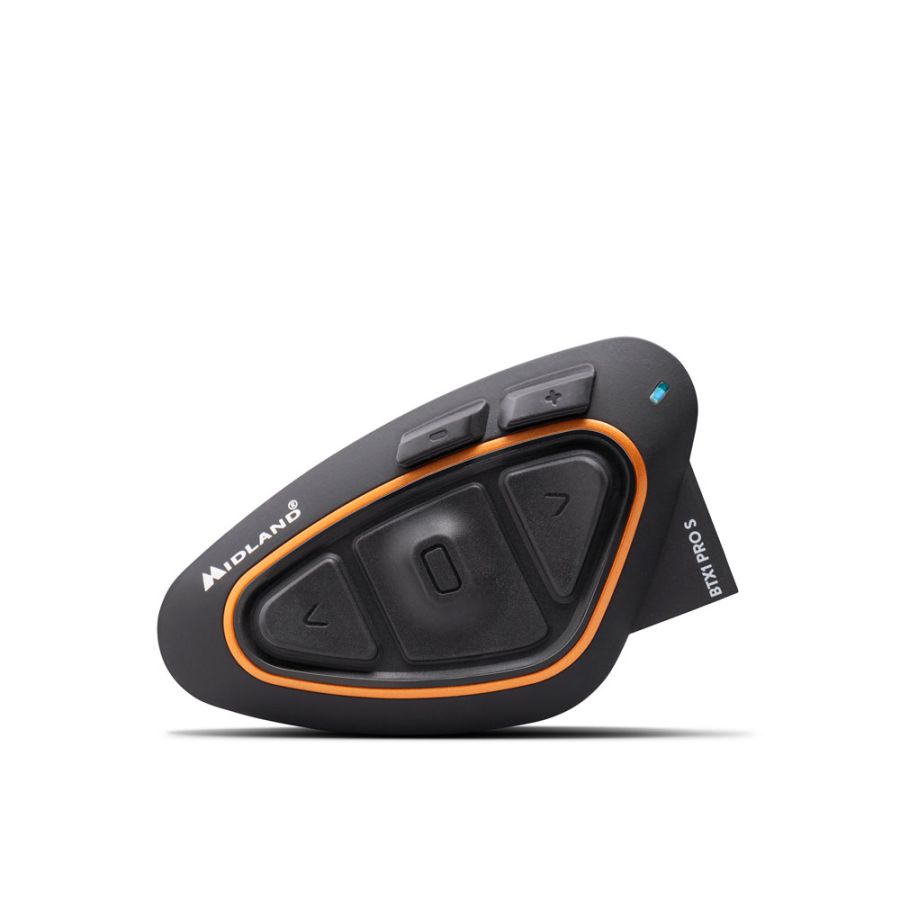
Support for Midland BTX1 Pro S Intercom


Here you will find the video and the software to upgrade your device
Guide on how to mount the device on the helmet
3.0 MB
Here you will find the video and the software to upgrade your device
Download the software to upgrade your device for Windows computers
82.0 MB
Download the software to upgrade your device for MacOS computers
681.0 kB
Here you will find the app to configure and use your device
Here you will find the answers to the most frequently asked questions about your device
Connecting your BTX1 PRO S is easy! Follow these steps:
- Prepare the intercom:
- With the intercom switched off, press and hold the center button for 7 seconds.
- The intercom LEDs will turn solid red.
- Activate pairing mode:
- Press and hold the Volume + button for 3 seconds.
- The LEDs will flash red and blue.
- Connect the device:
- On your phone, motorcycle display, or GPS, open the Bluetooth settings and search for "BTX1 PRO S".
- Select it and enter the code 0000 if requested.
- The blue LED will flash to confirm the connection.
- Done! Your intercom is ready to use.
Helpful tips:
- If your motorcycle has a display, first pair the phone with the display, then pair the intercom with the display. WARNING: in this configuration, the phone and intercom must not be directly connected to each other.
- To connect a GPS navigator (mono audio), follow the same procedure using the Volume - button instead.
With your BTX1 PRO S you can connect:
- Up to 4 intercoms: communicate with other riders using Midland, OBI, or third-party intercoms.
- Up to 2 Bluetooth devices: connect your smartphone, motorcycle TFT display, or GPS navigator.
Important:
- If you connect a new Bluetooth device, it will replace the previously connected one.
- If you have a GPS navigator, it is recommended to pair it as the second Bluetooth device so you can continue using your phone for calls and music.
- To connect a second Bluetooth device, such as a GPS navigator, use the Volume - button. The connection will be in mono audio.
One of the best features of the BTX1 PRO S is that it can connect to intercoms from any brand.
Midland, CARDO, and some SENA models
- Turn off the BTX1 PRO S.
- Press and hold the center button for 7 seconds until the LED turns solid red.
- Choose one of the three buttons where you want to pair the other intercom.
- Press and hold the chosen button for 3 seconds until the LEDs flash red and blue.
- To pair a fourth intercom, press and hold the Forward button for 7 seconds. The LED flashing speed will change.
- On the other intercom, activate Intercom pairing mode.
- The BTX1 PRO S will confirm the connection with a blue light.
Other brands
- Repeat the BTX1 PRO S preparation steps above.
- On the other intercom, activate Phone pairing mode.
- The BTX1 PRO S will confirm the connection with a blue light.
Important:
- Pairing a new intercom on the same button will overwrite the previous pairing.
- Always refer to your intercom manuals if in doubt.
Conference mode allows multiple riders to communicate simultaneously.
Preparing the intercoms
Create a chain connection:
- Connect the Back button of the first intercom to the Forward button of the second.
- Connect the Back button of the second to the Forward button of the third.
- Continue this pattern for all intercoms.
Activating Conference
- Press and hold the Control and Forward buttons together for 3 seconds.
- You will hear a voice prompt.
- Repeat on all intercoms participating in the conference.
Talking in Conference mode
- Press the Control button once to start communication.
- To end communication, close each intercom link by pressing the Forward and Back buttons.
Important:
- Devices paired through Volume + and Volume - are temporarily disabled while Conference mode is active.
- For best results, do not connect more than 6 intercoms in Conference mode.
- Download BTUpdater from the Midland Support website.
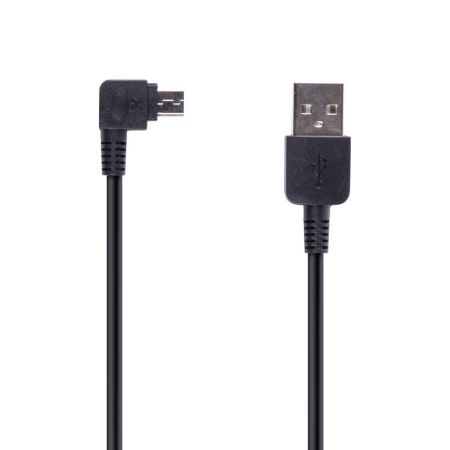
- Connect the intercom to your computer using the USB charging cable.
- Open BTUpdater and follow the on-screen instructions.
Note:
For twin-pack versions, each intercom must be updated separately using the longer end of the cable, as indicated in BTUpdater.
Helpful tips:
- Ensure your computer is connected to the internet.
- Do not disconnect the intercom during the update.
To start communication:
- In Intercom mode, press once the button used to pair the other intercom.
- In any other mode, press it twice.
To end communication:
- In Intercom mode, press once the same button.
- In any other mode, press it twice.
In simple terms:
- Think of the button as a call button: press once to call and again to hang up.
- If the other intercom is paired to the Control button and VOX is enabled, you can start communication simply by speaking.
VOX lets you answer calls or open communication with the intercom paired to the Control button using your voice.
Note:
When VOX activates an intercom connection, it will close automatically after 60 seconds of silence.
Enable/Disable VOX
- VOX is enabled by default.
- Press and hold the Back button for 7 seconds to toggle VOX.
- Repeat to enable it again.
Adjusting VOX sensitivity
Use the Midland Connect app to adjust sensitivity.
- Download Midland Connect from the App Store or Google Play.
Android users:
Complete all pairing steps.
iOS users:
You can skip directly to step 4 if you only want to use the app.
- Enable Bluetooth on your smartphone.
- Turn on the BTX1 PRO S and pair it with the phone.
- Open Midland Connect.
- The app should automatically detect the BTX1 PRO S.
- Configure settings such as VOX sensitivity and volume management.
Helpful tips:
- Ensure the latest firmware is installed.
- Restart both devices if connection issues occur.
- Check that the speakers inside the helmet are aligned with your ears.
- Remove the speakers and place them directly over your ears for testing.
If sound quality improves, the issue is related to speaker placement.
Intercom Mode
- Communication with compatible intercoms.
- Ideal for rider/passenger communication.
Phone Mode
- Calls, music, and navigation management.
FM Radio Mode
- Listen to FM radio stations and save favorites.
Switching modes
Press and hold the Control button for 3 seconds and release it when the audio prompt announces the desired mode.
No audio source must be active.
- In Phone mode, press the Forward button once.
If a second phone is paired through Volume -, use the Back button instead.
Answering and ending calls
- Press any intercom button once.
Rejecting calls
- Press and hold any button for 3 seconds.
VOX answer
- If VOX is enabled, answer by speaking a word loudly.
Phone Mode
- Open your preferred music app.
- Press Control once for Play/Pause.
- Press Forward once for the next track.
- Press Back once for the previous track.
Intercom Mode
- Double-press Control for Play/Pause.
No. On this model, stereo music, stereo GPS directions, and navigation app audio cannot be heard while Intercom is active.
However, mono GPS guidance (e.g., Garmin Zumo XT/XT2) can be heard in the background when paired through the Volume - button and with the Background Audio feature enabled.
Music Share allows you to share your music with your passenger.
- Switch to Phone mode.
- Start music playback.
- Open the passenger Intercom.
- Double-press the Control button.
Limitation:
You cannot talk with the passenger while music sharing is active.
In the latest BTX1 PRO S versions, web radio can be streamed through the Midland Connect app.
Factors affecting range
- Buildings, mountains, trees, trucks, and power lines.
- Incorrect mounting position on the helmet.
Tips
- The intercom features a directional internal antenna.
- Install it parallel to the direction of travel.
- Mount it symmetrically on the outer edge of the helmet.
- Range will always be lower in urban areas than in open spaces.
Absolutely! The BTX1 PRO S is waterproof and can be used in all weather conditions.
Warning:
Ensure the rubber charging-port cover is properly closed and that no plastic parts are damaged.
Charging time
- Approximately 3 hours for a full charge.
Battery life
- More than 23 hours of operation.
This long battery life allows for extended trips without frequent recharging.
Here you will find the manuals and software to configure and use your device
Here you will find the instructions for correctly disposing of the packaging of your device
- Packaging
- PAP 20: paper
- Inner boxes/dividers
- PAP 21: paper
- Internal envelopes
- 7PLA: organic
- sponge
- Mixed: unsorted
- Cable Tie
- Mixed: unsorted
- Adhesive residue
- Mixed: unsorted
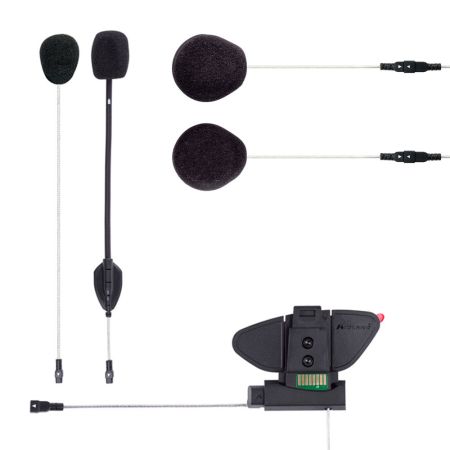
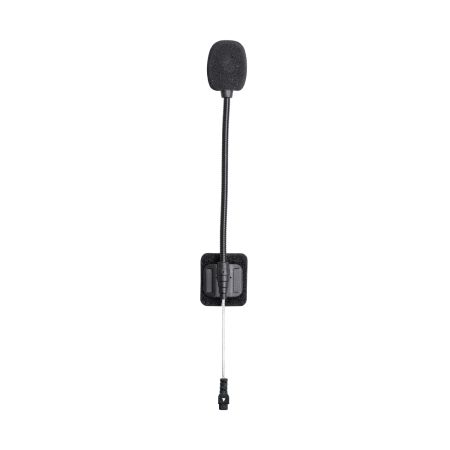
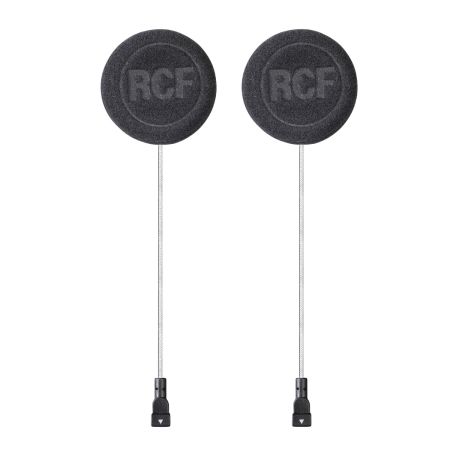
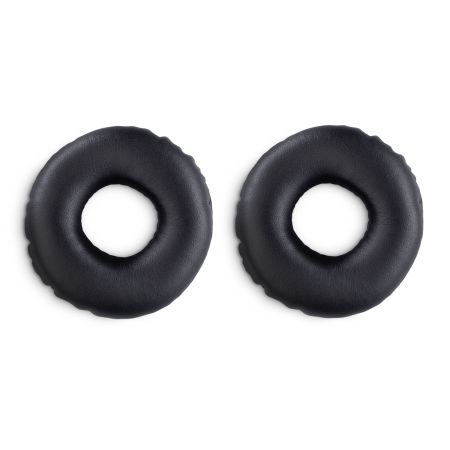
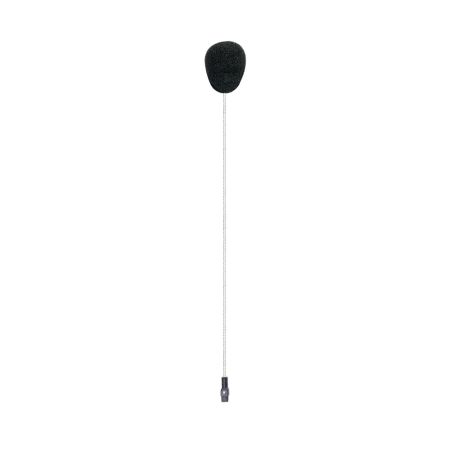
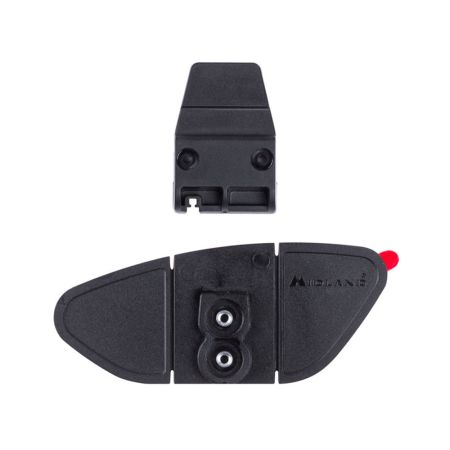
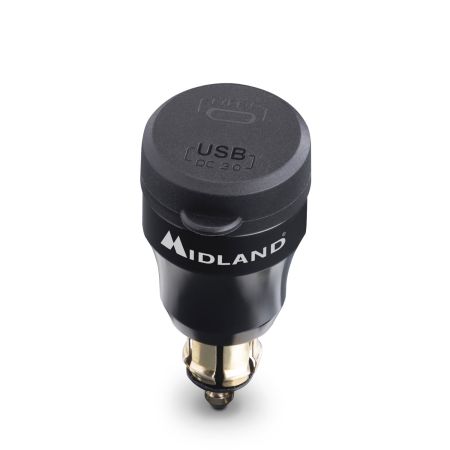
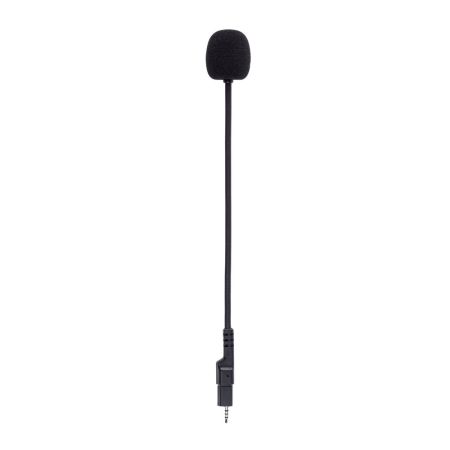
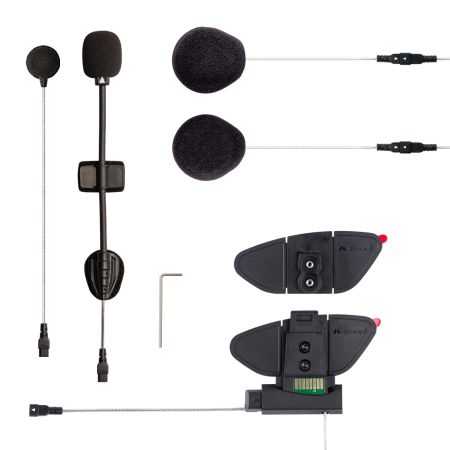
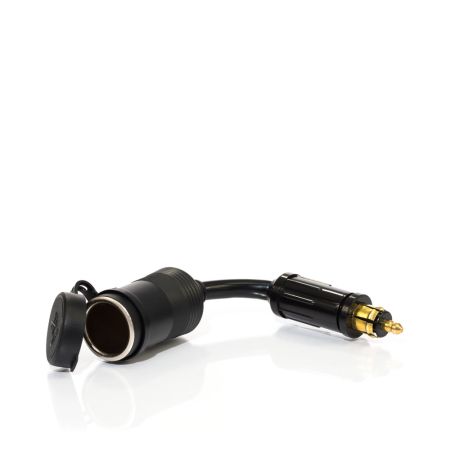
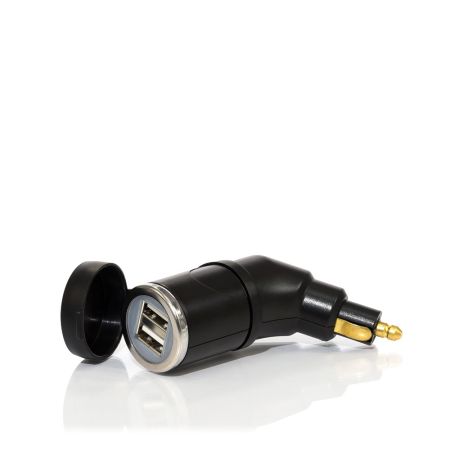
Here you will find the accessories and spare parts for your device