
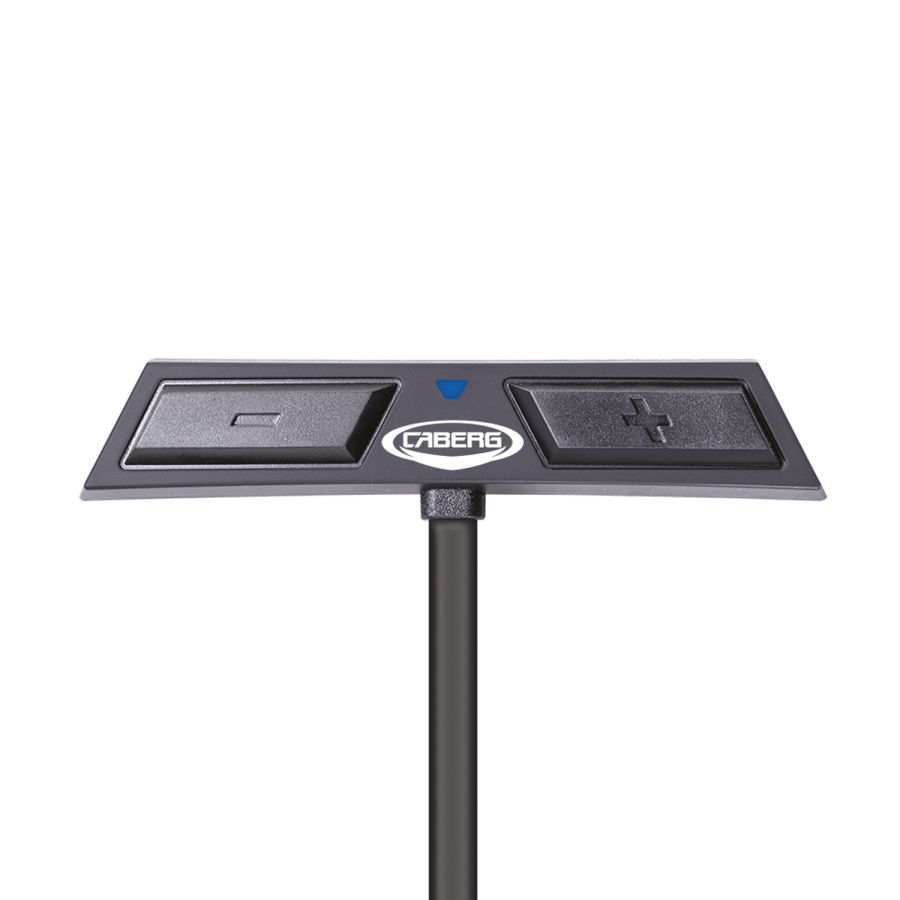
Support for CABERG PRO SPEAK EVO

Here you will find the video and the software to upgrade your device
Download the software to upgrade your device for Windows computers
82.3 MB
Here you will find the answers to the most frequently asked questions about your device
Connecting your CABERG PRO SPEAK EVO to a phone, TFT multimedia display, or GPS is quick and easy! Just follow these simple steps:
- With the device turned off, press and hold the rear button (Volume +) for five seconds. The LED will flash blue and red, indicating that the device is ready to pair.
- On your phone, multimedia display, or GPS, open the Bluetooth settings and search for Caberg Pro Speak Evo in the list of available devices.
- Select it to pair and, if requested, enter the PIN code 0000. The LED on your CABERG PRO SPEAK EVO will flash four times to confirm successful pairing.
And that's it! Your device is now connected and ready to use.
Tip: If your motorcycle has a TFT Multimedia Display, pair it directly with the intercom and, for optimal connectivity, pair your smartphone only with the TFT display.
Your CABERG PRO SPEAK EVO can be paired with:
- 1 intercom device
- 1 device among a phone, motorcycle TFT display, or GPS
Note: You can pair one intercom device (Caberg, Midland, or other brands).
Pairing another device using the same button will overwrite the previous pairing.
You can pair your CABERG PRO SPEAK EVO with intercoms from all brands! However, some models may require a special procedure using the Universal Intercom function.
Caberg and Midland Intercoms
- With the device powered on, press and hold the front button (Volume -) for five seconds until the LEDs flash blue and red.
- On the second device, start the intercom pairing procedure as described in its manual.
- The CABERG PRO SPEAK EVO will confirm successful pairing with a flashing LED.
Other Brands
Repeat the same procedure on your CABERG PRO SPEAK EVO, but on the other intercom start the phone pairing procedure according to the manufacturer's instructions.
Note: A new firmware update will soon be available, allowing native connectivity with OBI (Cardo), Sena, and Interphone intercoms.
Updating your device is quick and easy:
- Download the BTUpdater software from the UPDATE section at the top of this page.
- Connect the device to your PC using the charging cable and follow the instructions provided by the software.
Important: BTUpdater is currently compatible only with Windows PCs and is not available for macOS devices.
- Press and hold the rear button (Volume +) to increase the volume.
- Press and hold the front button (Volume -) to decrease the volume.
Volume can only be adjusted while listening to the audio source you want to control, such as intercom audio or music.
If the audio sounds low or uneven, the speakers inside the helmet may not be positioned correctly.
- Remove the helmet and check that the speakers are aligned with your ear canals and positioned close to your ears.
- Test by removing the speakers from the helmet and placing them directly over your ears. If the sound improves, the issue is related to speaker positioning.
Proper speaker placement is essential for the best audio quality.
Changing the language is easy:
- With the device powered on, press and hold the rear button (Volume +) for more than nine seconds.
- Keep holding it until you hear the battery status announcement in the desired language.
- Release the button when you hear your preferred language.
Press the rear button (Volume +) once to answer or end a call.
To reject an incoming call, press and hold the same button for three seconds.
The CABERG PRO SPEAK EVO also features Automatic Answer. When enabled, incoming calls will be answered automatically after eight seconds.
To enable or disable this function:
- With the device powered on, press and hold the rear button (Volume +) for three seconds.
- Release the button when you hear a beep, followed by a voice announcement.
Warning: Do not hold the button too long, otherwise you may activate the language selection mode.
- Press the front button (Volume -) twice to skip to the next track.
- Press the rear button (Volume +) twice to return to the previous track.
The maximum communication range stated in the product description was tested under optimal conditions.
Actual performance may be affected by obstacles such as:
- Trucks
- Mountains
- Trees
- Power lines
Absolutely! Your CABERG PRO SPEAK EVO can be used in all weather conditions.
The keypad is fully waterproof, so you do not need to worry about riding in the rain.
Battery life is approximately 8 hours of use.
First, make sure you have installed the latest firmware update. Then consult these FAQs and the Quick Guide to check for possible solutions.
If the issue persists, please contact our support team by filling out the form at the bottom of this page. We will respond as soon as possible.
Here you will find the manuals and software to configure and use your device
Here you will find the instructions for correctly disposing of the packaging of your device
- Packaging
- PAP 20: paper
- Inner boxes/dividers
- PAP 21: paper
- Internal envelopes
- LDPE 4: plastic
- protective film
- NYLON 07c: plastic
- Box Hanger
- LDPE 4: plastic
- sponge
- Mixed: unsorted
- Cable Tie
- Mixed: unsorted
- Adhesive residue
- Mixed: unsorted