
Support for MT-B01 -AXXIS

Here you will find the video and the software to upgrade your device
Guide on how to mount the device on the helmet
1.9 MB
Here you will find the video and the software to upgrade your device
Download the software to upgrade your device for Windows computers
82.0 MB
Here you will find the answers to the most frequently asked questions about your device
Connecting your MT-B01 to a phone, TFT multimedia display, or GPS is really easy! Follow these simple steps and you’ll be ready to go:
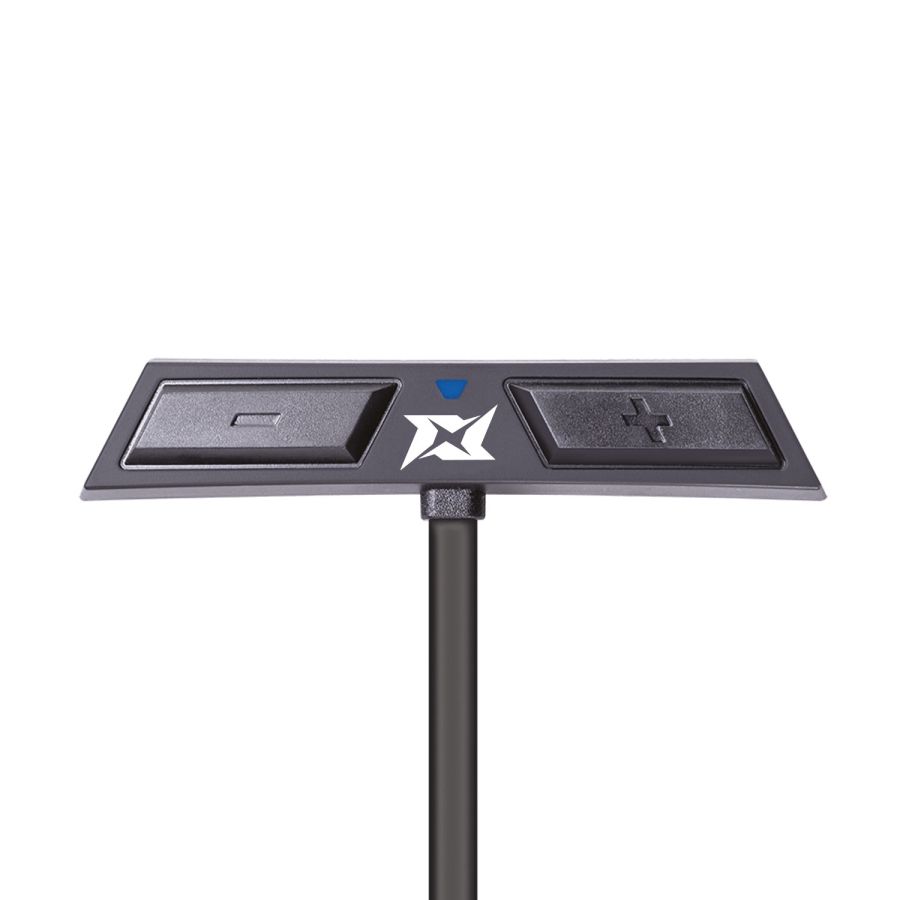
1. With the device turned off, press and hold the rear button (Volume +) for five seconds. You’ll see the LED flashing blue and red, indicating it’s ready to pair.
2. On your phone, multimedia display, or GPS, go to the Bluetooth settings and look for MTRyderSync/AXRyder Sync in the list of available devices.
3. Tap to confirm, and if prompted, enter the PIN 0000. The LED on your MT-B01 will flash four times to confirm a successful pairing.
Voilà! Your device is now connected and ready to use.
Tip: If your bike has a TFT Multimedia Display, pair it directly with the intercom and for optimal connection, pair your smartphone only with the display.
With your MT-B01, you can pair 1 intercom and 1 device among a phone, motorcycle TFT display, or GPS.
Note: You can pair 1 intercom device (MT/AXIS, Midland, or other brands).
Pairing another device on the same button will overwrite the previous one.
You can pair intercoms of all brands with your MT-B01! For some models, a special procedure using the Universal Intercom function may be required.
Here’s what you can do:
• MT, AXIS, and Midland intercoms pair easily. With the device turned on, press and hold the front button (Volume -) for five seconds until the LEDs start flashing blue and red. Then, on the other device, start the intercom pairing procedure following its manual. MT-B01 will confirm pairing with a flash.
• Other brands: Repeat the same procedure on your MT-B01, but on the other intercom, start the phone pairing procedure, following its manual.
Note: A new update will soon allow native connection with OBI (Cardo), Sena, and Interphone intercoms.
Updating your device is quick and easy! Follow these steps:
1. Download BTUpdater from the "UPDATE" section at the top of this page.
2. Connect the device to your PC using the charging cable, and the software will guide you through the process.
Important: Currently, BTUpdater is only compatible with PCs (Windows operating systems) and is not available for MAC (iOS).
To start Intercom communication with your MT-B01, simply press the front button (Volume -) once.
• To increase the volume, press and hold the rear button (Volume +).
• To decrease the volume, press and hold the front button (Volume -).
Volume can only be adjusted while listening to the audio source you want to control, such as intercom or music.
If the audio seems low or unbalanced, your helmet speakers may not be positioned correctly. Here’s what to do:
1. Check speaker placement: Remove the helmet and make sure the speakers are aligned with your ear canal and close to your ears.
2. Test directly: Remove the speakers from the helmet and place them directly on your ears. Do you hear a difference? If the sound improves, the issue is with the mounting.
Make sure the speakers are positioned correctly for the best audio quality!
Changing the language on your MT-B01 is easy! Follow these steps:
1. With the device on, press and hold the rear button (Volume +) for more than nine seconds…
2. Keep holding until you hear the battery status announcement in the desired language.
3. Release the button when you hear the language you want.
Simply double-press the front button (Volume -), and you’re ready to go.
• Press the rear button (Volume +) once to answer or end a call.
• To reject an incoming call, press and hold the same button for three seconds.
Additionally, MT-B01 has Auto Answer: if enabled, the intercom will automatically answer a call after eight seconds. To enable or disable it, with the device on, press and hold the rear button (Volume +) for three seconds, release when you hear a BEEP, and follow the voice prompt. Be careful not to hold too long, or you may change the language instead.
1. Open your favorite music app on your phone.
2. Press the rear button (Volume +) once to play or pause music.
3. While listening, you can skip to the next track by double-pressing the forward button (Volume -) or go back to the previous track by double-pressing the backward button (Volume +).
Unfortunately, music cannot play during intercom conversation but will resume automatically when the intercom ends.
The range stated in the product description was tested under optimal conditions. Actual performance may be affected by obstacles such as trucks, mountains, trees, or power lines.
Absolutely! You can use your MT-B01 in all weather conditions. The keypad is fully waterproof, so you don’t need to worry about rain while riding.
Your device takes about 2 hours to fully charge.
The device lasts approximately 8 hours of use.
First, make sure you have installed the latest update. Check these FAQs and the Quick Guide for possible solutions. If the problem persists, contact our support team using the form at the bottom of this page, and we will respond as soon as possible.
Here you will find the manuals and software to configure and use your device
Here you will find the instructions for correctly disposing of the packaging of your device
- Packaging
- PAP 20: paper
- Inner boxes/dividers
- PAP 21: paper
- Internal envelopes
- 7PLA: organic
- protective film
- Mixed: unsorted
- Box Hanger
- LDPE 4: plastic
- sponge
- Mixed: unsorted
- Cable Tie
- Mixed: unsorted
- Adhesive residue
- Mixed: unsorted